 Product Personaliser
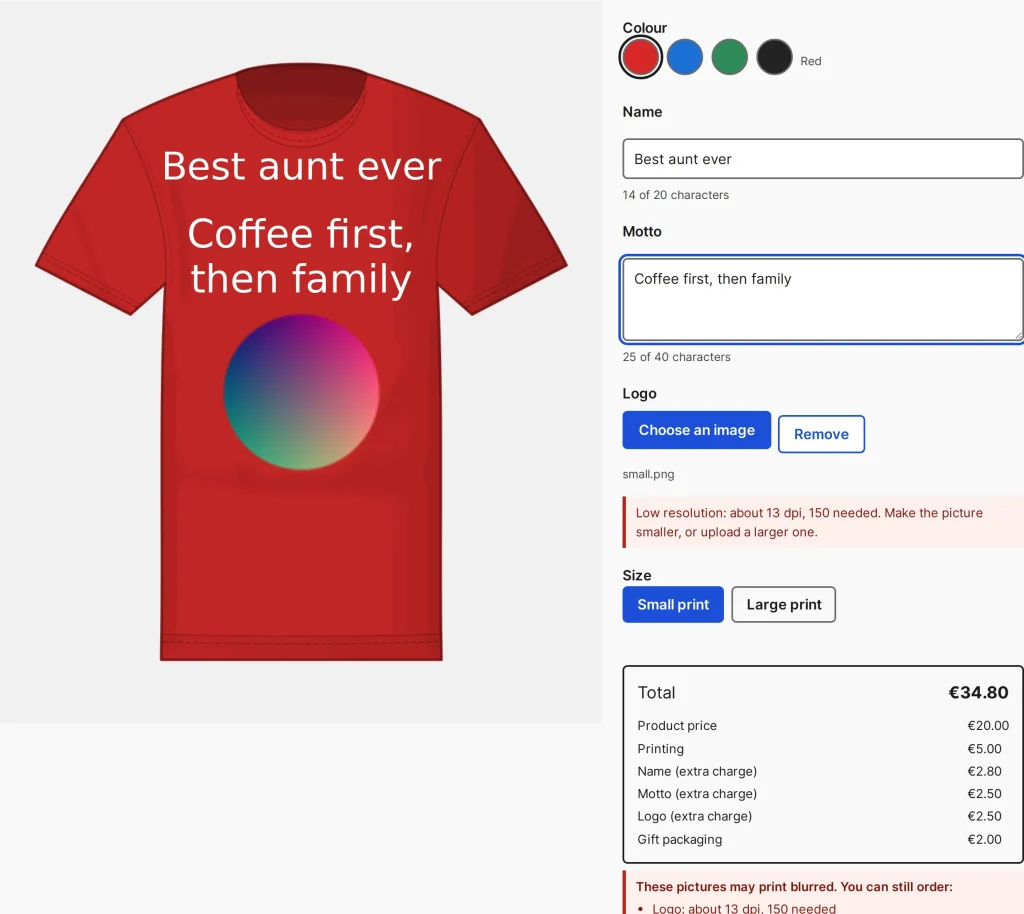
The effective resolution of a picture is its stored pixels divided by the inches it is printed at. A picture needs the larger of the print area's dpi and the lowest resolution of the chosen print type. Text, clipart and vector drawings are never judged.
Steps
- On the product tab set Sharpness required (dpi) of the print area.
- Choose When a picture is not sharp enough: Warn (the customer sees a notice but can still order) or Block (the customer cannot order).
- Press Update.
What the customer sees
- Canvas: a red dashed frame with a badge on the picture and, in the layers list, a sentence such as "Low resolution: about 96 dpi, 150 needed. Make the picture smaller, or upload a larger one."
- Form: the same sentence under the picture field.
- Block: Add to cart is disabled and the shop also refuses the design in the cart, in the live price and at checkout. The server uses its own stored pixel size, never numbers from the browser.
- Saving a design as a draft is never refused.
The free build keeps the figure but does not check pictures.
Example
A buyer uploads a small logo for a T-shirt. The sentence says about 96 dpi against 150 needed. She uploads a larger file and the notice disappears.
Related topics
Was this page helpful?
Report an errorApplies to version 0.1.0.