 Product Personaliser
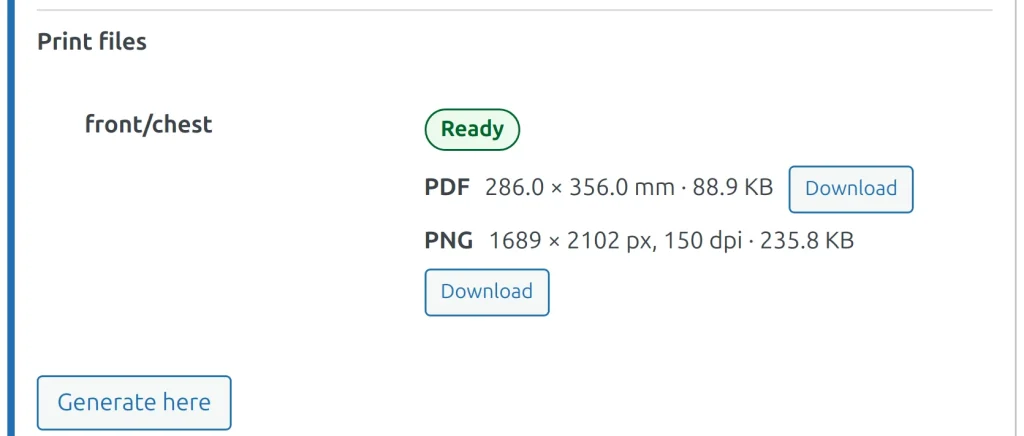
Print files are made by shop staff only, never by the customer. Your own browser makes the PDF, so the shop server does no heavy work.
One order
- Open the order. In the Personaliser box, under Print files, press Generate here.
- The browser makes a PDF (and a PNG when it fits) for each print area of the line and uploads them in parts.
- Each area shows Ready, Missing or Does not match the design. Only a PDF makes an area ready. A newer file replaces the older one; the older stays under replaced files.
- Download is for staff who manage the shop only.
Many orders
- In the orders list choose the orders (up to 100).
- In Bulk actions choose Generate print files and press Apply.
- The page Generate print files makes the files one after another. Keep it open until the list is finished. Each row shows Waiting, Working, Done or Failed, and a failed row can be tried again.
- Press Download ZIP. Files are named
order-<number>.pdf, or a folder per order with several areas. Orders without personalised lines are skipped.
Production e-mail
When every area of every personalised line of an order has a matching PDF, one e-mail goes to the addresses in Settings > Print files > Production e-mail recipients (the shop address when empty). It holds links that ask for sign-in and no attachment. It is sent once; the order action Send the production e-mail with the print files sends it again.
Files are kept as long as the order and are removed with it. The print type's lowest resolution raises the dpi of the file.
Example
A shop gets 40 orders overnight. The owner ticks them, chooses Generate print files, leaves the page open while coffee brews, downloads one ZIP and sends it to the printer.
Related topics
Was this page helpful?
Report an errorApplies to version 0.1.0.