 Product Personaliser
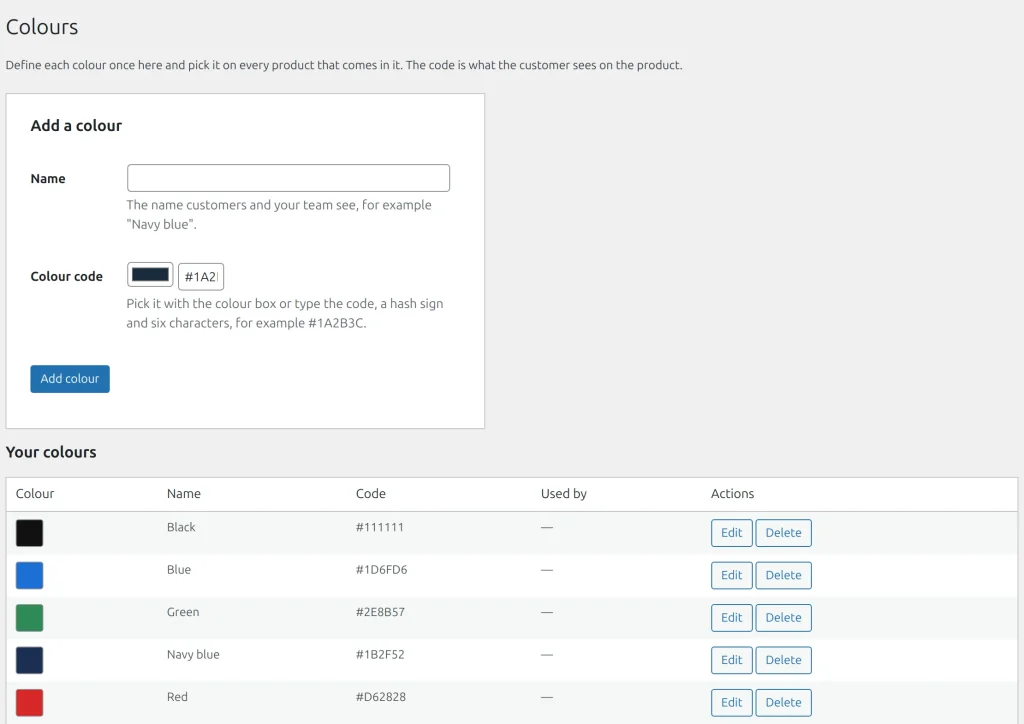
A colour is a value of a WooCommerce attribute, with its code. Stock and personalisation share one list, so a colour added here can also be sold as a variation.
Steps
- Open Personaliser > Colours. The first time, press Create the colour attribute if the list is not set up.
- Under Add a colour type a Name, choose the Colour code and press Add colour.
- On a product, press Colours under Add to this product and tick the colours the product comes in (up to 100).
- For each colour choose Shown by:
- Painting the photo through the mask: the view photo is tinted through the colour mask. One photo serves every colour.
- A photo of the product in this colour: the colour's own photo is used for each view that has one.
- Both: the photo where it exists, otherwise the tint.
A colour used by a product cannot be deleted; the screen shows which product uses it. The attribute can be changed under Colour attribute in the settings.
On a variable product the chosen colour follows the variation form, and a design made for one colour is refused for a variation of another colour.
Example
A mug in white, red and blue: one white photo with a mask that is white where the mug changes colour. The buyer picks red and the mug on the photo turns red.
Related topics
Was this page helpful?
Report an errorApplies to version 0.1.0.