 Product Personaliser
Steps
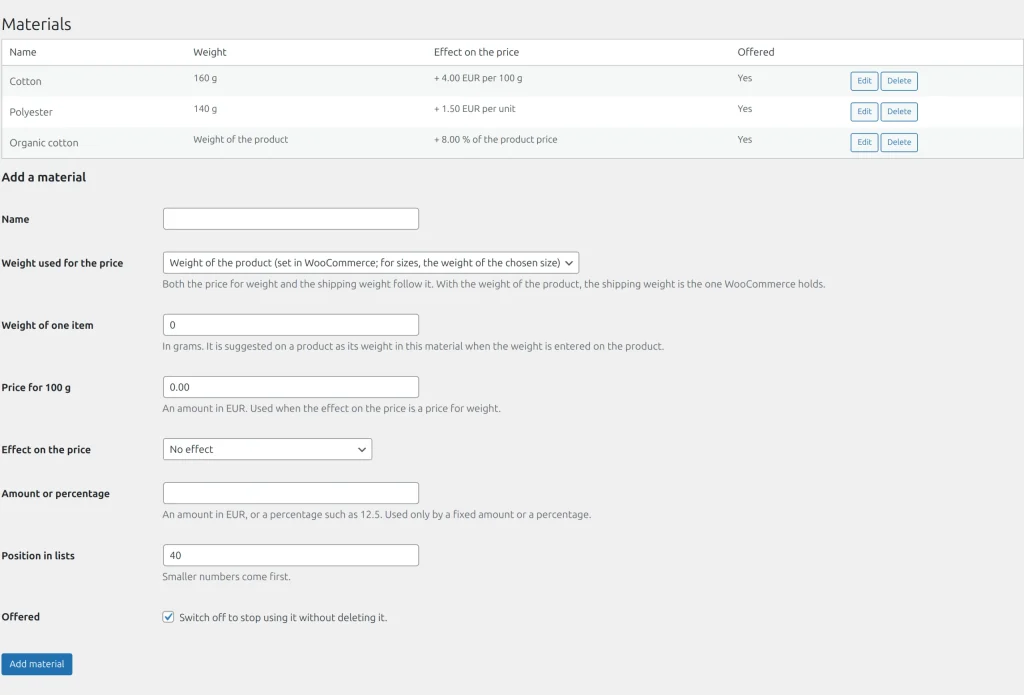
- Open Personaliser > Materials and fill Add a material:
- Weight used for the price: the weight of the product set in WooCommerce (for sizes, the weight of the chosen size), or an own weight entered on the product.
- Weight of one item in grams (the value suggested on a product), Price for 100 g (optional).
- Effect on the price: No effect; Weight price added to the product price; Weight price replaces the product price; A fixed amount for every unit; A percentage of the product price.
- On the product tab press Material, tick the materials on offer and choose the Preselected one. For a material with own weight, enter the weight of this product in this material.
How the price is made
Weight price per unit = price for 100 g × weight ÷ 100, rounded half up. With no weight, or a price of zero, the weight price is 0, so a product is never sold for nothing. A fixed amount is multiplied by the quantity; a percentage is taken of the shop price of the line.
The cart weight follows the material: with the weight of the product it stays the WooCommerce weight; with own weight and "Replaces" it becomes the own weight; with "Added", a fixed amount or a percentage it is the WooCommerce weight plus the own weight. Shipping extensions that price by weight use it.
A product without a material has exactly the WooCommerce price and weight. A switched-off material is not offered; one used by a product cannot be deleted.
Example
A mug in porcelain (5.00 for 100 g) or metal. The mug weighs 300 g, so porcelain adds 15.00 to the price. The same weight goes to the carrier when a shipping extension prices by weight.
Related topics
Was this page helpful?
Report an errorApplies to version 0.1.0.