 Product Personaliser
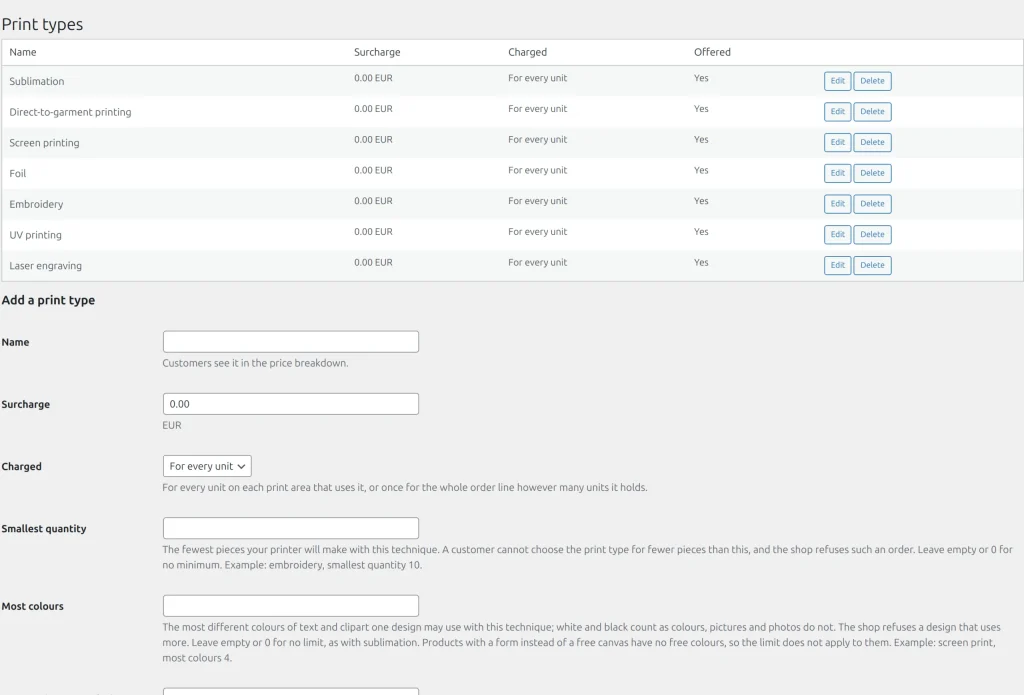
The free build lets you name one print type and one surcharge for a product. The paid build keeps a catalogue.
Steps
- Open Personaliser > Print types. With none, press Add the usual print types or fill Add a print type.
- For each type set: Name, Surcharge, Charged (For every unit or Once per line), Smallest quantity, Most colours, Lowest picture resolution, Position in lists and Offered.
- On the product tab press Print type under Add to this product, tick the types the product offers and choose the Preselected one.
What each setting does
- For every unit is multiplied by the quantity; once per line becomes a set-up fee. The chosen type is charged for each used print area.
- Smallest quantity: the type cannot be made for fewer pieces. On the product page its card is greyed with "From N pieces" and the choice moves to another type; the cart and checkout refuse such a line.
- Most colours: at most that many different colours among text and clipart (white and black count). The canvas editor shows "Colours used: 5 of 4" and blocks Add to cart when exceeded. It does not apply to a form product, which has no free colours.
- Lowest picture resolution raises the dpi of the print file and of the resolution check.
- A switched-off type is not offered; products that already list it keep it marked "(switched off)". A type that a product uses cannot be deleted.
The customer's choice is part of the design, so it reaches the cart, the order, saved designs and the proof.
Example
A T-shirt can be printed by "Screen print" (cheaper, from 10 pieces, at most 3 colours) or "Embroidery". The buyer sees both as cards; "Screen print" is greyed out with "From 10 pieces" while the quantity is 2. The price changes with the choice.
Related topics
Was this page helpful?
Report an errorApplies to version 0.1.0.