 Product Personaliser
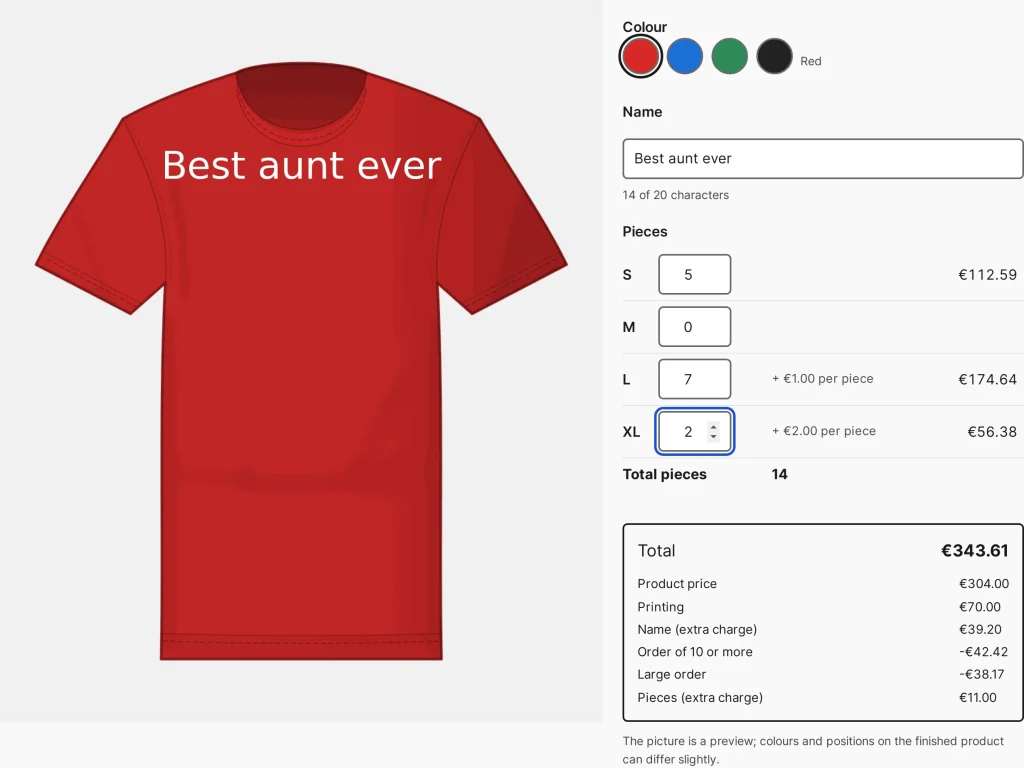
The field Quantities by option shows a table on the product page with a row for each possibility and a whole-number box for each row. The sum of the boxes is the quantity of the order.
Steps
- On the product tab add the field with Add quantities by option.
- Under Where the rows come from choose The sizes of this product (a variation attribute) or A list I type.
- For each row you may set a smallest and a largest number and a Surcharge per piece. A product may have one such field, with up to 100 rows.
- Press Update.
How it behaves
- The shop's own quantity box and size selector are hidden. The total is shown at once.
- Each ordered size becomes its own cart line, priced by its own variation plus the surcharge of its row. All lines carry a copy of the same design and are removed together.
- Quantity discounts and the quantity condition of price rules use the sum of the order. A set-up fee is charged once.
- The cart, the checkout, the order and the e-mails show the split, for example "S ×5, L ×7".
- Edit design on any line opens the table filled with the whole split, and adding to the cart replaces every line of that order.
- Before anything is added the shop checks that every row can be bought; if one cannot, the whole order is refused with a message naming the row.
Example
A club orders 14 shirts with one logo. The buyer types 5 for S, 7 for L and 2 for XL, sees the total at once and adds them in one click. The cart shows three lines with the same design. Later "Edit design" on any line changes the logo on all three.
Related topics
Was this page helpful?
Report an errorApplies to version 0.1.0.